LESSON 3: HOW TO USE WINDOWS COMPUTER – BASIC NAVIGATION AND ESSENTIAL SKILLS FOR BEGINNERS
Introduction Windows is one of the most widely used operating systems in the world. Millions of people use Windows computers every day in schools, offices, businesses, and homes.

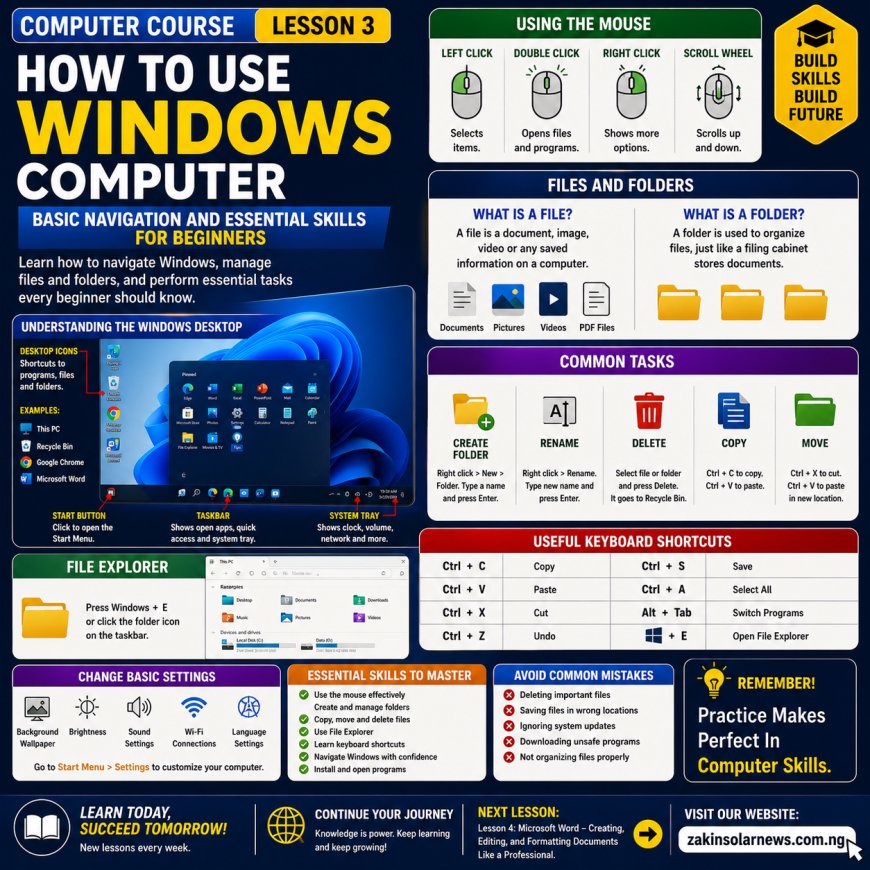
LESSON 3: HOW TO USE WINDOWS COMPUTER – BASIC NAVIGATION AND ESSENTIAL SKILLS FOR BEGINNERS
Introduction
Windows is one of the most widely used operating systems in the world. Millions of people use Windows computers every day in schools, offices, businesses, and homes.
If you are new to computers, learning how to use Windows is one of the most important skills you can acquire. Understanding the Windows environment will help you work faster, stay organized, and perform everyday computer tasks with confidence.
In this lesson, we will learn the basic parts of the Windows operating system, how to navigate through it, manage files and folders, and perform essential tasks every beginner should know.
What Is Windows?
Windows is an operating system developed by Microsoft.
An operating system (OS) is the software that manages the computer and allows users to interact with it.
Without Windows or another operating system, a computer cannot function properly.
Popular versions include:
✅ Windows 10
✅ Windows 11
✅ Windows Server
Understanding The Windows Desktop
The Desktop is the first screen you see after starting your computer.
The desktop contains:
1. Desktop Icons
Icons are small images that represent programs, files, or folders.
Examples:
This PC
Recycle Bin
Google Chrome
Microsoft Word
2. Taskbar
The taskbar is located at the bottom of the screen.
Functions:
✔ Shows open applications.
✔ Displays the clock and date.
✔ Provides quick access to programs.
3. Start Menu
The Start Menu allows you to access:
Programs
Settings
Documents
Power options
To open it:
Click the Start button or press the Windows key.
Using The Mouse
The mouse helps you interact with Windows.
Left Click
Used to select items.
Double Click
Used to open files and programs.
Right Click
Used to access additional options.
Scroll Wheel
Used to move up and down pages.
Opening And Closing Programs
To open a program:
Click the Start Menu.
Find the program.
Click on it.
To close a program:
Click the X button at the top-right corner.
Understanding Files And Folders
What Is A File?
A file is a document, image, video, or any saved information on a computer.
Examples:
Word documents
Pictures
Videos
PDF files
What Is A Folder?
A folder is used to organize files.
Just like a filing cabinet stores documents, folders store files.
Creating A New Folder
Steps:
Right-click on the desktop.
Select New.
Click Folder.
Type the folder name.
Press Enter.
Renaming Files And Folders
Steps:
Right-click the file or folder.
Select Rename.
Enter a new name.
Press Enter.
Deleting Files And Folders
Steps:
Select the file.
Press Delete on the keyboard.
Deleted files usually go to the Recycle Bin.
Understanding The Recycle Bin
The Recycle Bin stores deleted files temporarily.
Functions:
✔ Restore deleted files.
✔ Permanently remove files.
Using File Explorer
File Explorer is used to manage files and folders.
To open it:
Press Windows + E
or
Click the folder icon on the taskbar.
Functions:
✔ View files.
✔ Copy files.
✔ Move files.
✔ Delete files.
✔ Organize folders.
Copying And Moving Files
Copy
Creates a duplicate file.
Shortcut:
Ctrl + C
Then:
Ctrl + V
Move
Transfers a file to another location.
Shortcut:
Ctrl + X
Then:
Ctrl + V
Basic Keyboard Shortcuts
Shortcut
Function
Ctrl + C
Copy
Ctrl + V
Paste
Ctrl + X
Cut
Ctrl + Z
Undo
Ctrl + S
Save
Ctrl + A
Select All
Alt + Tab
Switch Programs
Windows + E
Open File Explorer
These shortcuts can save time and improve productivity.
Changing Basic Settings
Windows allows users to customize:
Background wallpaper
Screen brightness
Sound settings
Wi-Fi connections
Language settings
To access settings:
Click Start Menu > Settings
Common Mistakes Beginners Make
1. Deleting Important Files
2. Saving Files In Wrong Locations
3. Ignoring Updates
4. Downloading Unsafe Programs
5. Not Organizing Files Properly
Essential Skills Every Beginner Should Learn
✔ Using the mouse effectively
✔ Creating folders
✔ Managing files
✔ Using File Explorer
✔ Basic keyboard shortcuts
✔ Navigating Windows
✔ Installing and opening programs
Conclusion
Windows is the foundation of most modern computers. Learning how to navigate the desktop, manage files, use folders, and understand basic settings will help you become more confident and productive when using a computer.
The more you practice, the easier Windows becomes.
Remember:
"Practice Makes Perfect In Computer Skills."
Meaning: The more you practice using a computer, the better and faster you become.
Quiz Questions
What is Windows?
What is the function of the Start Menu?
What is a file?
What is a folder?
How do you create a new folder?
What is the purpose of File Explorer?
Mention five keyboard shortcuts and their functions.
Next Lesson:
Lesson 4: Microsoft Word – Creating, Editing, and Formatting Documents Like a Professional.
What's Your Reaction?
 Like
0
Like
0
 Dislike
0
Dislike
0
 Love
0
Love
0
 Funny
0
Funny
0
 Angry
0
Angry
0
 Sad
0
Sad
0
 Wow
0
Wow
0