LESSON 4: MICROSOFT WORD – CREATING, EDITING, AND FORMATTING DOCUMENTS LIKE A PROFESSIONAL
Introduction Microsoft Word is one of the most popular word processing applications in the world. It is widely used in schools, offices, businesses, and organizations for creating professional documents.

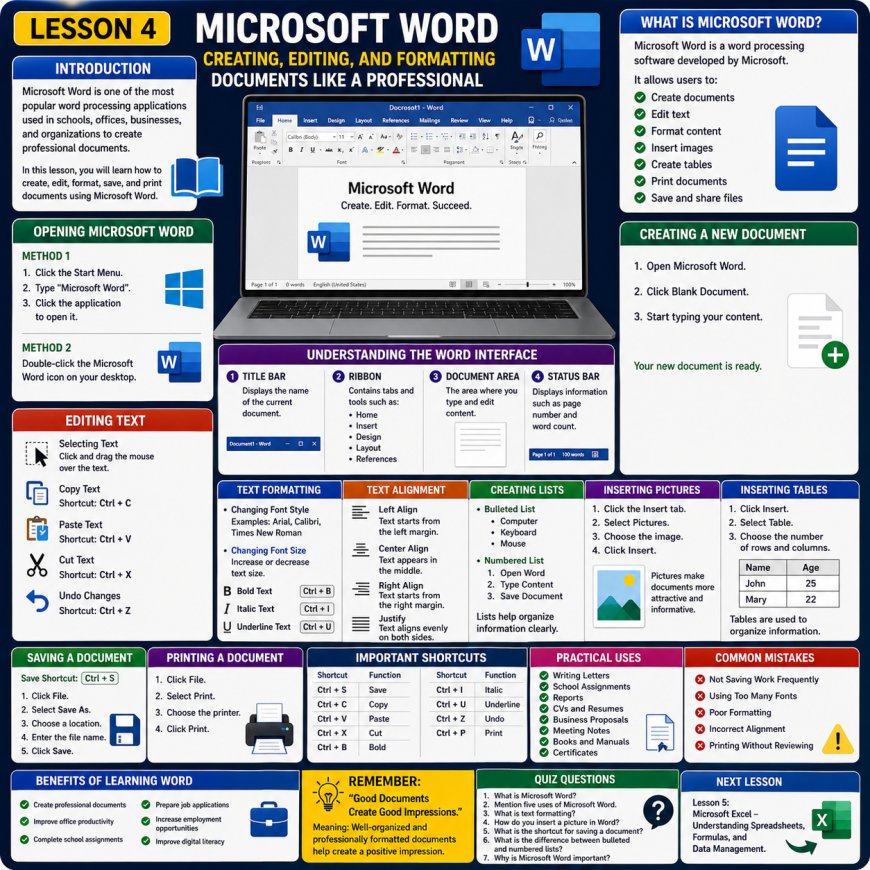
LESSON 4: MICROSOFT WORD – CREATING, EDITING, AND FORMATTING DOCUMENTS LIKE A PROFESSIONAL
Introduction
Microsoft Word is one of the most popular word processing applications in the world. It is widely used in schools, offices, businesses, and organizations for creating professional documents.
Whether you want to write letters, assignments, reports, business proposals, CVs, or books, Microsoft Word provides the tools needed to create and format documents efficiently.
Learning Microsoft Word is one of the most valuable computer skills because it is required in many workplaces and educational institutions.
In this lesson, you will learn how to create, edit, format, save, and print documents using Microsoft Word.
What Is Microsoft Word?
Microsoft Word is a word processing software developed by Microsoft.
It allows users to:
✔ Create documents
✔ Edit text
✔ Format content
✔ Insert images
✔ Create tables
✔ Print documents
✔ Save and share files
Word is one of the most commonly used office applications worldwide.
Opening Microsoft Word
Method 1
Click the Start Menu.
Type "Microsoft Word".
Click the application to open it.
Method 2
Double-click the Microsoft Word icon on your desktop.
Understanding The Word Interface
When Word opens, you will see several important sections.
1. Title Bar
Displays the name of the current document.
2. Ribbon
Contains tabs and tools such as:
Home
Insert
Design
Layout
References
3. Document Area
The area where you type and edit content.
4. Status Bar
Displays information such as page number and word count.
Creating A New Document
Steps:
Open Microsoft Word.
Click Blank Document.
Start typing your content.
Your new document is ready.
Basic Typing Techniques
When typing documents:
✔ Use proper capitalization.
✔ Use punctuation correctly.
✔ Leave spaces between words.
✔ Organize content into paragraphs.
Good typing habits improve document quality.
Editing Text
Editing means making changes to existing text.
Selecting Text
Click and drag the mouse over the text.
Copy Text
Shortcut:
Ctrl + C
Paste Text
Shortcut:
Ctrl + V
Cut Text
Shortcut:
Ctrl + X
Undo Changes
Shortcut:
Ctrl + Z
Text Formatting
Formatting improves the appearance of documents.
Changing Font Style
Examples:
Arial
Calibri
Times New Roman
Changing Font Size
Increase or decrease text size depending on the document.
Bold Text
Shortcut:
Ctrl + B
Italic Text
Shortcut:
Ctrl + I
Underline Text
Shortcut:
Ctrl + U
Text Alignment
Microsoft Word provides four alignment options.
Left Align
Text starts from the left margin.
Center Align
Text appears in the middle.
Right Align
Text starts from the right margin.
Justify
Text aligns evenly on both sides.
Creating Lists
Bulleted List
Example:
• Computer
• Keyboard
• Mouse
Numbered List
Example:
Open Word
Type Content
Save Document
Lists help organize information clearly.
Inserting Pictures
Steps:
Click the Insert tab.
Select Pictures.
Choose the image.
Click Insert.
Pictures make documents more attractive and informative.
Inserting Tables
Tables are used to organize information.
Steps:
Click Insert.
Select Table.
Choose the number of rows and columns.
Example:
Name
Age
John
25
Mary
22
Saving A Document
Saving prevents data loss.
Save Shortcut
Ctrl + S
Steps:
Click File.
Select Save As.
Choose a location.
Enter the file name.
Click Save.
Printing A Document
Steps:
Click File.
Select Print.
Choose the printer.
Click Print.
Important Microsoft Word Shortcuts
Shortcut
Function
Ctrl + S
Save
Ctrl + C
Copy
Ctrl + V
Paste
Ctrl + X
Cut
Ctrl + B
Bold
Ctrl + I
Italic
Ctrl + U
Underline
Ctrl + Z
Undo
Ctrl + P
These shortcuts help users work faster and more efficiently.
Practical Uses Of Microsoft Word
Microsoft Word can be used for:
✅ Writing Letters
✅ School Assignments
✅ Reports
✅ CVs and Resumes
✅ Business Proposals
✅ Meeting Notes
✅ Books and Manuals
✅ Certificates
Common Mistakes Beginners Make
5. Not Saving Work Frequently
6. Using Too Many Fonts
7. Poor Formatting
8. Incorrect Alignment
9. Printing Without Reviewing
Benefits Of Learning Microsoft Word
Learning Word helps you:
✔ Create professional documents
✔ Improve office productivity
✔ Complete school assignments
✔ Prepare job applications
✔ Increase employment opportunities
✔ Improve digital literacy
Conclusion
Microsoft Word is one of the most important computer applications for students, employees, and business owners. It allows users to create professional documents quickly and efficiently.
With regular practice, you can master Microsoft Word and improve your computer skills significantly.
Remember:
"Good Documents Create Good Impressions."
Meaning: Well-organized and professionally formatted documents help create a positive impression.
Quiz Questions
What is Microsoft Word?
Mention five uses of Microsoft Word.
What is text formatting?
How do you insert a picture in Word?
What is the shortcut for saving a document?
What is the difference between bulleted and numbered lists?
Why is Microsoft Word important?
Next Lesson:
Lesson 5: Microsoft Excel – Understanding Spreadsheets, Formulas, and Data Management.
Hadamin hotondazanyi posting na wan an darasin
Square
What's Your Reaction?
 Like
0
Like
0
 Dislike
0
Dislike
0
 Love
0
Love
0
 Funny
0
Funny
0
 Angry
0
Angry
0
 Sad
0
Sad
0
 Wow
0
Wow
0